Most people touch their calendar dozens of times a week—yet almost none of that time is spent designing how they actually want to work. You’re not just “busy”; you’re running someone else’s system. Today’s question: what if your tools quietly enforced your priorities instead?
UC Irvine’s research says you’re likely bouncing between tasks every few minutes. That frantic switching isn’t just in your brain—it’s baked into your tools. Notifications, endless tabs, scattered to‑do lists: your setup quietly rewards reacting over focusing.
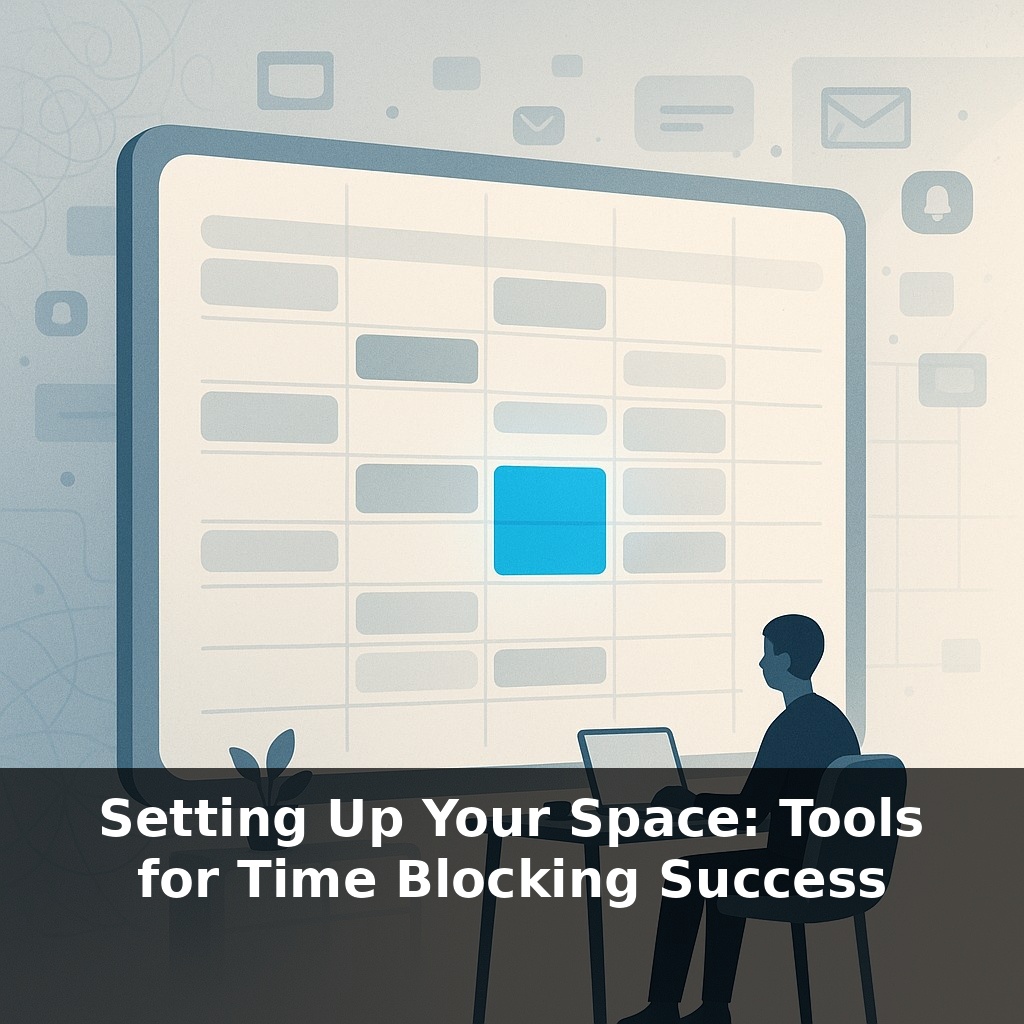
Today we zoom in on the “workbench” behind time blocking: the actual apps, views, and settings that either make your plan effortless to follow—or so clunky you abandon it by Wednesday.
We’ll look at why most people need one “home base” calendar, how to pair it with just enough task and focus tools (not ten), and how to reduce the clicks between “I know what I should do” and “I’m actually doing it.” Think of this as rewiring your digital workspace so it feels like walking into a tidy kitchen: everything you need is reachable, and nothing gets in your way.
Most people try to “fix” their schedule by installing yet another app. But the problem usually isn’t missing software; it’s that your tools don’t cooperate. Tasks live in one place, deadlines in another, and your actual day in a third. You end up project‑managing your own life instead of doing the work.
Here, we’re going to treat your setup more like a train network: one main line (your calendar) with a few well‑chosen branches (tasks, notes, focus aids) that meet at clear junctions. The aim isn’t a perfect system; it’s a simple one where adding, moving, and protecting blocks feels almost frictionless.
The UC Irvine numbers tell you how fragile your attention is; your setup decides how often it gets shattered. So let’s make your tools do three things well: **show** your day as blocks, **hold** your commitments in one place, and **let you adjust quickly when reality hits.**
Start with the visual layer. In your main calendar, you want to see *time*, not tiny text. That means:
- Default to a **day or 3‑day view**, not month. - Color‑code by *mode* of work (deep work, meetings, admin, personal) instead of by project. - Turn off extra calendars you don’t need during the workday (sports, random shared ones), so your actual capacity is visible at a glance.
Next, bridge the gap between “things you could do” and “things you’ve actually given time to.” A light system:
- Capture everything in one **inbox list** (inside your task app or notes). - Once a day, promote a few items onto your calendar as real blocks. - Inside each block, include a short checklist or link back to the relevant task or doc, so the block isn’t just a name; it’s a launchpad.
This is where friction usually kills people’s plans: if it takes 90 seconds and five clicks to turn “Draft report” into a concrete block with context, you’ll skip it. Your goal is to reduce the distance between intention and scheduling to almost zero.
Now layer in **focus protection**. A simple stack works best:
- One calendar. - One capture list. - One focus aid: this might be system‑level “Do Not Disturb,” a website blocker, or a timer app that pairs with your calendar (e.g., starts a 50‑minute timer when a “Deep Work” event begins).
Think of it like a travel itinerary: flights (calendar), packing list (tasks), and gate alerts (focus tools). You don’t need a thousand apps; you need the few that talk to each other.
Finally, make your setup resilient to chaos. Meetings will move; priorities will flip. So practice:
- Dragging whole blocks, not deleting them. - Keeping **buffer blocks** around intense sessions. - Leaving a small daily “catch‑up” block to absorb spillover work.
When it’s easy to slide your plan instead of abandon it, you’re much more likely to stick with time blocking long enough to see those deep‑work gains.
A developer who tracks billable hours offers a useful example. She keeps one streamlined calendar view, then lets a lightweight tracker start counting automatically whenever an event tagged “Client” begins. At week’s end, she isn’t guessing where her time went; her invoice almost writes itself. A designer friend uses a different combo: a notes app pinned beside his calendar, where each block has a matching “workspace” note. When the block starts, he clicks one link and lands on sketches, feedback, and next steps—no hunting.
You can experiment the same way. Try linking your calendar to a minimalist timer that pops up only during certain colors or tags. Or test a browser extension that hides social sites whenever a specific keyword is in the current event title. One writer I know set it so any block containing “Draft” automatically launches her writing app and closes everything else. The shared theme: tools that quietly react to the blocks you’ve already laid down, rather than demanding yet another dashboard to check.
Soon your setup may feel less like static software and more like a quiet teammate. As AI agents learn your patterns, they’ll predict which blocks are likely to overrun, pre‑stretch them, and shuffle low‑stakes items without asking. Wearables could flag when your energy dips and propose micro‑shifts, like nudging a demanding block later and sliding in email triage now. Think of it as having a smart market‑maker for your attention, constantly rebalancing where each minute delivers the highest return.
Treat this setup as a living prototype, not a finished product. Notice which views feel like clear road signs and which feel like detours. Tiny tweaks—a renamed color, a smarter default view, one less tab—compound like interest. Over time, your screen stops shouting options and starts offering a quiet, reliable next move.
To go deeper, here are 3 next steps: 1) Order (or pull out) a large visual weekly planner like the *Moleskine Weekly Planner* or a magnetic whiteboard calendar and physically block your deep-work, admin, and buffer blocks for the next 7 days—use different colored dry-erase markers or pens the way the episode suggested (e.g., blue for focus, red for meetings, green for personal). 2) Download a time-blocking–friendly digital tool such as *Sunsama* or *Motion* and import tomorrow’s calendar, then drag each task into a specific block so your tech matches the physical setup on your desk. 3) Grab a simple desktop organizer (like the *Yamazaki Home Desk Bar* or any small tray) and recreate the “one-touch” station from the episode: put your timer (e.g., a Pomodoro cube or the *Forest* app on your phone), noise-cancelling headphones, and sticky notes there so every time-blocking session starts from the same, distraction-free setup.