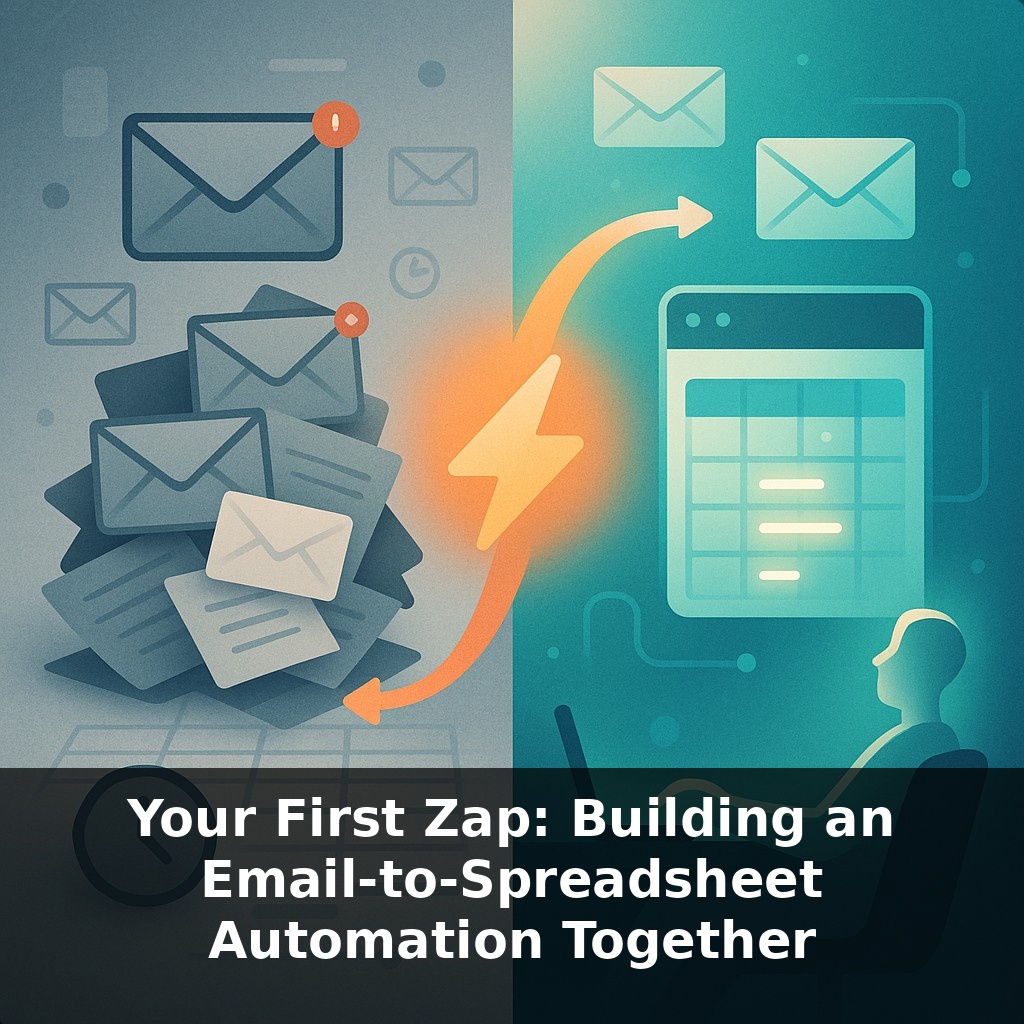
Your inbox is quietly doing admin work you should never be doing. Right now, a typical worker spends about a third of their day just moving information around. In this episode, we’ll step into two inboxes—one manual, one automated—and notice how differently their day unfolds.
In the manual version of that day, you copied numbers from emails into a sheet, hunted for missing details, and hoped you didn’t skip a message. In the automated version, your spreadsheet quietly stayed up to date while you worked on higher‑value tasks. In this episode, we’ll stop comparing and actually build that automation together.
By the end, you’ll have a working “email‑to‑spreadsheet” Zap: when a specific type of email arrives, a new row appears in your sheet within seconds. We’ll walk through three concrete steps: choosing the exact emails to watch, mapping fields like name, total, or URL into columns, and testing with a real example—such as logging new leads, demo requests, or order confirmations. You’ll see how to capture just the data you need, avoid duplicates, and keep everything structured for reporting later.
Today we’ll zoom out for a minute before we click anything. The tool we’ll use is Zapier, which connects over 5,000 apps and quietly runs about 2 billion tasks every month. On the free plan, you get 100 tasks to experiment with your first setup; that’s plenty to prove whether logging leads or orders into a sheet actually saves you time. We’ll pair Zapier with Google Sheets, which can easily handle dozens or even hundreds of new rows per day. To keep things stable, we’ll design your setup around one consistent email type—like a single form, store, or inbox alias.
Start by opening Zapier and creating a new Zap. For the trigger app, choose your email provider (for example, Gmail) and pick the trigger event “New Email.” Connect the account you actually receive these structured messages in. When Zapier asks what to watch, be precise: instead of “Inbox,” narrow to a label or folder like “Leads‑Webform” or only emails that match a search such as `from:sales@yourtool.com subject:"New demo request"`. That precision is how you get close to 95–98% clean data.
Next, add a condition so you don’t burn through your monthly task limit. If you’re on Zapier’s free 100‑task plan, each matched email is 1 task, so 3–4 test leads per day for a week is plenty to validate. On a paid Starter plan, filters unlock more control: add a Filter step that passes only when the subject contains “New order,” or when the body includes “Total:” and “Email:”. That way, newsletters, internal chatter, and one‑off replies won’t create junk rows.
Now set up the action step with Google Sheets. Choose “Create Spreadsheet Row,” connect your Google account, then pick a specific spreadsheet and tab—ideally one created just for this Zap, with named columns like `Received At`, `Customer Name`, `Email`, `Amount`, `Source`. When Zapier pulls in a sample email, you’ll see individual fields you can click into each column. Use the timestamp from the trigger for `Received At`, the sender or a parsed field for `Email`, and a line like “Total: $145.00” for `Amount`.
If your emails follow a consistent template, you can slot 5–10 different fields into columns with high reliability. For trickier text, insert a Formatter step to split on line breaks or colons and strip currency symbols before hitting the sheet. This keeps your sheet ready for filters, pivot tables, and charts instead of becoming a messy log.
With everything mapped, run a live test. Send yourself a realistic sample—say 3 fake leads with different names and amounts—and confirm that 3 new rows appear with exactly the values you expect and nothing extra. If you anticipate spikes (for example, 200 confirmations after a campaign), Zapier will automatically batch writes so you stay within Google’s 100‑writes‑per‑second limit without losing any entries.
A small SaaS team used a setup like this to monitor trial signups in real time. They pointed their Zap at only one label where form notifications landed. Each email contained five key pieces of data: name, company, plan, region, and “How did you hear about us?”. In their sheet, they added columns for each field plus one extra: `Owner`. Then they used a simple rule in their CRM: if `Region` = “EU”, assign to Marta; if “US”, assign to Alex. Within a week, they noticed 63 out of 70 EU trials closed faster when contacted in under 2 hours, so they added a Slack notification step whenever `Plan` = “Pro” and `Region` = “EU”.
Think of it like tagging every transaction in your bank account: once each entry is labeled with source, size, and owner, quick filters reveal which channels produce the highest‑value customers, which campaigns underperform, and where to focus next month’s budget. This same pattern works for support tickets, partnership inquiries, and event registrations—any flow where a structured email represents a unit of work or revenue.
One marketing agency tracked 120 webinar registrations in a week and spotted that 40% came from just two newsletters. The next month, they doubled down on those partners and cut three low‑performing channels entirely.
Now apply this to your world: list three recurring emails that signal something valuable—a new signup, a support request, or a sales opportunity. For each, decide on 4–6 columns that would make decisions effortless later: maybe `Lead Score`, `Industry`, `Campaign`, or `Urgency`. The power isn’t just in logging; it’s in choosing fields that turn raw messages into a dashboard you can actually act on.
Zapier already runs 2,000,000,000+ tasks monthly; as similar tools connect with AI, your simple setup can evolve fast. Your sheet could score 500 leads/day on intent, route the hottest 50 to sales, and send 200 low-fit ones to a nurture sequence—without touching a CRM UI. Stack in alerts, enrichment, and dashboards and you’ve quietly built a personal ops layer.
Your challenge this week: turn one recurring signal into a live, shareable “mini‑dashboard” your team can check daily.
Once it’s running, don’t stop at rows. After 7 days, add two simple views: a filter showing only today’s 10–20 newest entries, and a summary that counts how many arrived per day for the last 14 days. If volume jumps from 15 to 45 in a week, use that spike to justify a new hire, budget shift, or a follow‑up campaign.
Start with this tiny habit: When you receive an email that you *wish* was going straight into a spreadsheet (like a contact form, lead, or order notification), star that one email and quietly say to yourself, “This is a Zap.” Then, once per day, open Zapier, click “Create Zap,” and do just one tiny step: choose Gmail as the trigger app and select “New Starred Email” as the trigger—then stop, you’re done for the day. Tomorrow, when you star the next similar email, simply add the next tiny step: pick Google Sheets as the action app and select the spreadsheet you want. Keep repeating that pattern—one tiny click or choice per day—until your email-to-spreadsheet Zap is turned on.