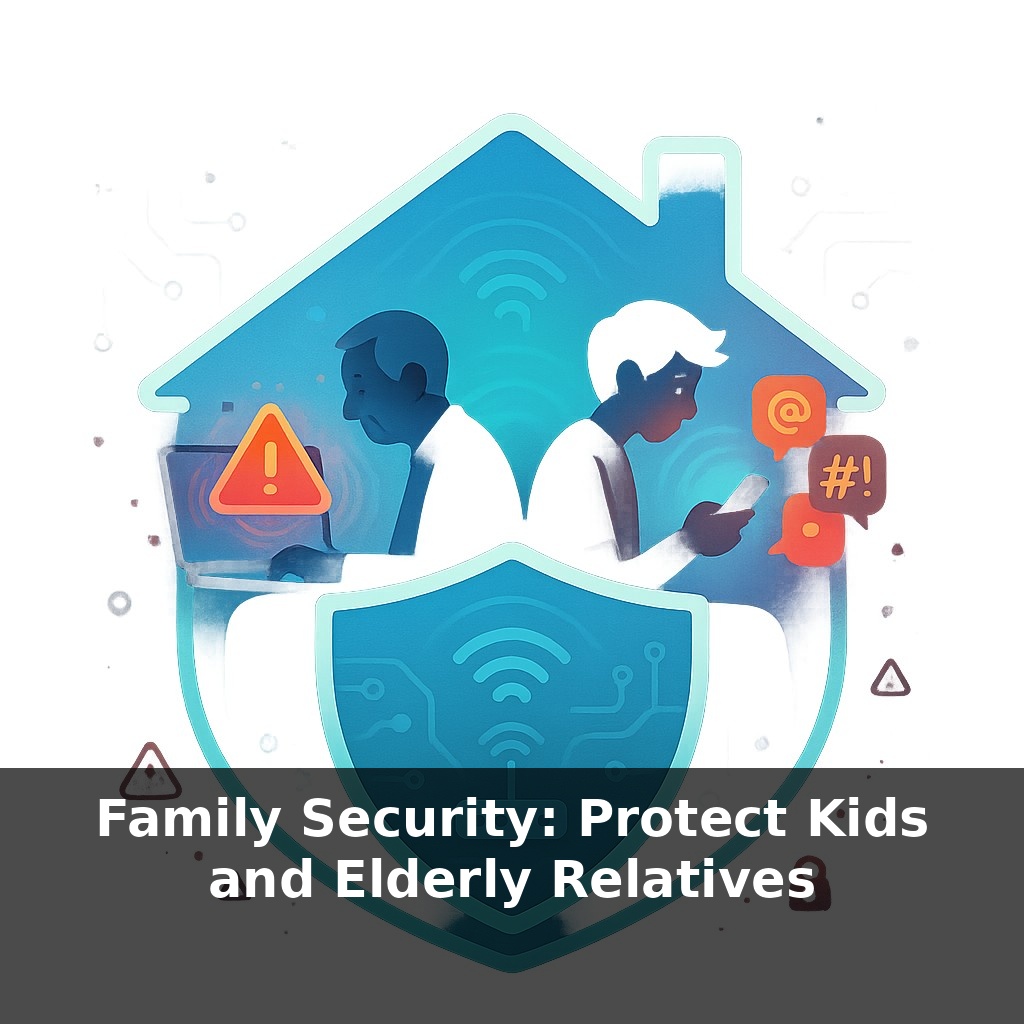
About half of reported elder-fraud losses now come from fake “tech support.” A blinking pop‑up, a frantic phone call, a grandparent reaching for their wallet. At the same time, a teen in the next room is getting harassed in a group chat. One home, two silent digital emergencies.
A pop‑up on one device and a nasty group chat on another aren’t just bad moments; they’re signals that the “shared air” in your home network is polluted. Kids and older relatives are breathing that same air through different apps, screens, and habits. The risks overlap more than they realize: the same breached email that lets a scammer reset Grandpa’s bank login might also expose your teen’s gaming accounts and private messages. The good news is you don’t need 20 different fixes for 20 different gadgets. You need a handful of family rules and settings that quietly protect everyone: guardrails on the home Wi‑Fi, separate logins so one bad click doesn’t sink every device, and a simple routine where “we tell each other when something feels off” is as normal as buckling a seatbelt. From there, you can tune protections to match each person’s age, health, and tech comfort level.
So how do you actually turn that polluted “air” into something safer to breathe? Start by mapping who does what online, the way a doctor asks about sleep, diet, and exercise before giving advice. Which devices do your kids use when you’re not in the room? Which screen does your dad trust most for banking or health portals? You’re looking for choke points: the tablet that every child shares, the email account every password reset goes to, the one laptop your parents rely on. Those spots deserve stronger locks, simpler layouts, and backup plans everyone can follow even on a stressful day.
Young kids and older relatives usually sit at opposite ends of the couch—and opposite ends of risk. To protect both, think in layers: what the device allows, what the account can do, and what the person understands.
Start with devices. For children, that often means locking down the things they tap without thinking: app installs, in‑app purchases, camera and location access, time limits. On most phones, tablets, and game consoles, you can create child profiles that only run apps you approve, during hours you set. For older adults, device setup is less about restriction and more about reducing clutter and confusion: remove duplicate apps, pin a tiny set of essentials to the home screen, and turn off notifications from anything that isn’t a person or a bank they actually use. Fewer icons equals fewer wrong doors to walk through.
Next, accounts. Kids jump between games, school platforms, and social apps; you want blast‑proof compartments so one hacked login doesn’t spill into everything else. That means unique passwords and turning on multi‑factor wherever it exists, especially for email, school, and gaming accounts that handle chat or payments. For elders, prioritize the accounts that touch money or medical info. Put multi‑factor there first, then help them store recovery codes and answers in a password manager you both know how to open, in case you need to rescue them remotely.
Then comes behavior. Kids need scripts for social pressure: what to do when a friend shares a cruel meme, when a stranger asks for photos, when a game chat moves to a private DM. Role‑play those moments so they’ve already “rehearsed” saying no or capturing screenshots. Older relatives need scripts for urgency: what to say when a caller claims there’s an account problem, when someone insists on remote access, when a “relative” needs money right now. Simple rules like “I never give codes over the phone” or “I hang up and call the company back using the number on my card” are powerful.
Think of it like a weather system: you can’t control every storm online, but you can give everyone in the house a raincoat that fits, a place to shelter, and a shared plan for when the sky turns dark.
A helpful way to build those layers is to assign each person a “role” in your home’s digital weather forecast. The youngest kid might be the “storm spotter” for weird pop‑ups on the family tablet: if they see something odd, their only job is to close it and tell an adult, not to fix it. A teen can be the “radar operator,” in charge of checking privacy settings on apps the family uses a lot and flagging new features that might leak more data than expected. An adult child who’s comfortable with tech can be the “meteorologist” for older relatives, reviewing bank alerts and account‑activity emails with them once a month. You can even give devices roles: one “clean” laptop only for taxes and banking; a “play” device for games and random browsing. When everyone knows their part, it feels less like surveillance and more like a small, shared safety project.
AI is about to make family security feel less like “don’t click the bad thing” and more like spotting counterfeits in a crowded market. Voices and faces you trust will be easy to fake, so families may lean on small, shared signals—a code word in phone calls, a specific phrase in group chats—that function like watermarks on real money. As kids grow up and elders age, those signals, plus tools that verify callers or preserve digital legacies, become the quiet glue holding trust together.
Security won’t be a one‑time checklist; it’ll be a family habit that shifts as fast as apps do. Treat it like tending a small garden: you pull new weeds (strange apps, sketchy emails), add better tools (updated routers, safer defaults), and invite kids and elders to help. The goal isn’t perfect safety, but a home where threats feel noticeable, discussable, and manageable.
Start with this tiny habit: When you plug in your phone at night, text yourself one question: “Who checked on Grandma’s (or Mom/Dad’s) medications today?” and add a one-word answer (You, Sis, Nurse, etc.). The next night when you plug in your phone, glance at last night’s text and add today’s check-in right under it. This creates a super simple daily log of elder care without any apps or spreadsheets, and keeps everyone’s safety top of mind.