You probably touched your notes app, inbox, and browser tabs before breakfast. Here’s the paradox: you’re surrounded by information, yet when you need one key detail, it’s the hardest thing to find. This episode is about why your brain works fine—your digital system doesn’t.
McKinsey estimates knowledge workers lose almost a full workday each week just hunting for files and messages. That’s not a focus problem—it’s an architecture problem. If everything you touch lives in a different place, under a different naming scheme, you’re forcing your future self to play detective every single day.
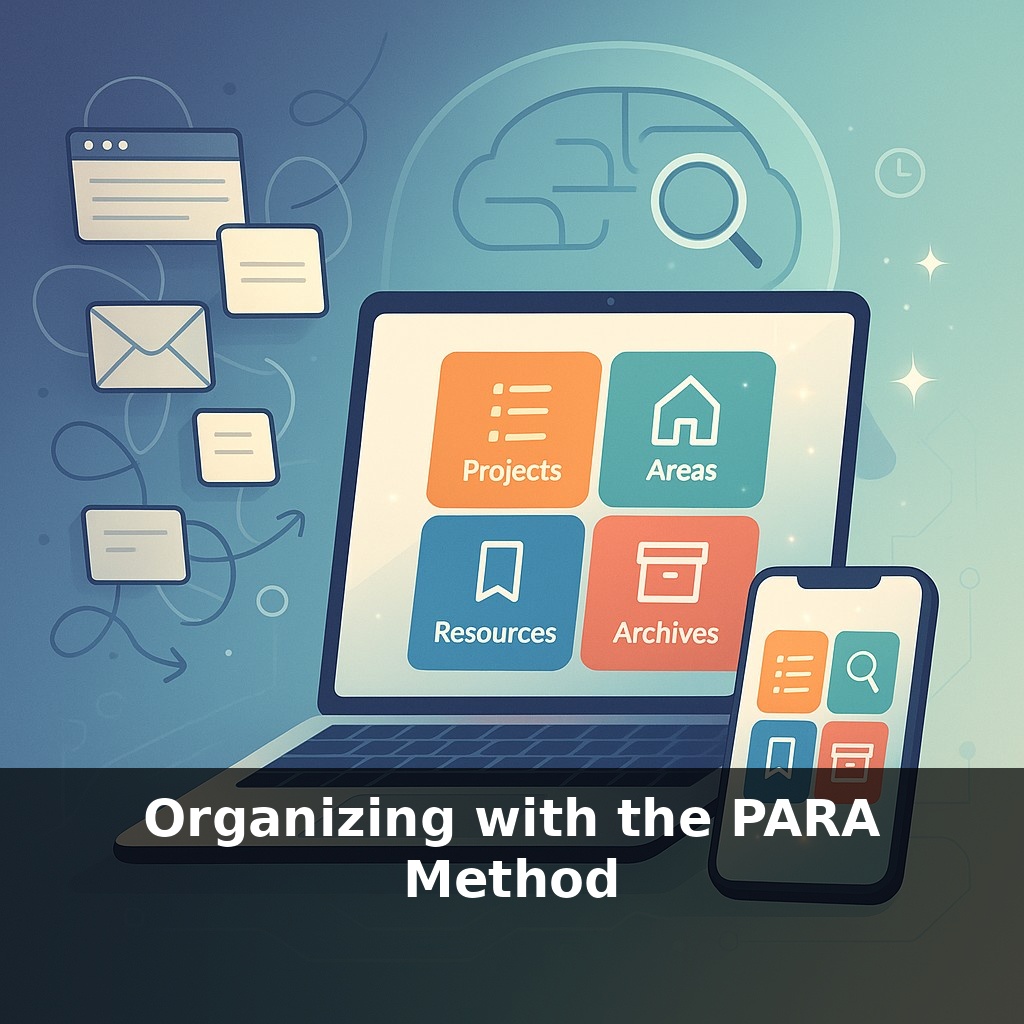
This is where the PARA method enters—not as yet another “productivity hack,” but as a simple way to decide *where* each piece of information should live the moment it appears. Instead of asking, “Which app should this go in?” you start asking, “When will I actually use this?”
In this episode, we’ll zoom in on that question. You’ll see how four clear buckets—Projects, Areas, Resources, and Archives—turn random notes, email attachments, and downloads into a system that quietly supports your work in the background, so you can spend less time searching and more time actually shipping.
Most people try to fix their chaos by adding *more*: more tags, more folders, more rules. Yet the people who stick with PARA longest usually do the opposite—they ruthlessly simplify. They don’t start by reorganizing their entire cloud; they start where the pain is sharpest: the active work already on their plate. A single client proposal, a hiring round, a product launch. They reshape just those into PARA, then let the rest of their system “catch up” over time, the way a coach rebuilds an athlete’s form one movement at a time instead of rewriting their whole playbook overnight.
Let’s zoom in on how this actually looks when you’re working, not theorizing.
Start with something concrete already on your plate: say you’re leading a Q2 marketing push. Instead of one massive “Marketing” folder, you break out *just this initiative* into a small, living structure.
- The campaign itself becomes a **project**. Anything tied to launching it—draft copy, ad mockups, timelines—lands there the moment it appears. If it moves the campaign forward, it belongs in that space. - Next to it, you keep a quieter **area** for “Marketing – Ongoing.” This holds things you maintain regardless of campaigns: brand guidelines, audience personas, your publishing calendar. When the Q2 push ends, this area is still relevant; the project isn’t. - The **resources** section is where you park the “interesting, maybe useful later” materials: a competitor teardown, a report on TikTok trends, a podcast summary about positioning. They aren’t driving today’s launch, but they could sharpen the next one. - A few weeks after the campaign ships, you sweep old drafts, outdated spreadsheets, and approved assets into **archives**. They’re not cluttering your current view, but they’re still searchable if someone asks, “What did we run last spring?”
Notice what changed: you didn’t touch your whole drive. You created a small island of clarity around *one* stream of work. That island becomes your template.
Next time you spin up a new initiative—hiring a designer, refreshing your onboarding, preparing for a conference—you repeat the pattern. Over a month or two, the “old way” of vaguely named folders coexists with these sharper pockets of structure. The newer pockets gradually become where you instinctively store and retrieve things, and the messy legacy zones matter less and less.
You can layer this across tools without making it complex. A “Q2 Campaign” project can have: - A folder in your cloud drive - A note in your notes app - A label in your email
They share a name, so jumping between them is trivial. You follow the work, not the app.
Think of this like a basketball team learning a new play: you don’t rewrite the entire playbook in one practice. You install one play, run it until it feels natural, then add the next. Over time, the offense *becomes* the new system through repetition, not a giant reorganization day.
A designer planning a portfolio refresh might set up one project for “Website Rebuild – Spring,” then link it to an ongoing “Design – Career” area. Draft layouts, feedback, and timelines sit with the project; recurring habits like updating Dribbble or tracking leads live in the area. When the site launches, the project closes, but the “career” space keeps evolving with new skills, clients, and experiments.
A manager running hiring for a data analyst could mirror that structure. One project for “Data Analyst Search – Q3” collects job ads, candidate scorecards, interview notes; a separate “Team – Analytics” area holds role expectations, onboarding checklists, and quarterly goals. Next quarter, a new hire project spins up, but the team space just keeps refining.
Your challenge this week: pick one initiative already in motion and create *only* its project space plus a single supporting area. As new files, notes, or links appear, resist old habits—route them into one of those two containers and notice where things *don’t* fit. Those misfits will quietly reveal which resource or archive spaces you actually need next.
As your system matures, those four buckets quietly become training data for future tools. An assistant that “sees” which notes you link into active work can start suggesting timely connections—like a coach tossing you the right play just as you cross half court. Expect apps to notice when something stops changing and nudge it out of your way, or spot dormant ideas that suddenly match a new objective and pull them back into view.
Treat this less like “organizing” and more like tuning an instrument: small, regular adjustments that keep everything playable. As your setup stabilizes, test bolder moves—share a project space with a teammate, mirror your structure on your phone, or tag a few notes by outcome. The goal isn’t perfection; it’s building a system that keeps evolving with you.
Here’s your challenge this week: Pick one active project (like “Redesign website” or “Plan Italy trip”) and fully rebuild its digital home using PARA—create a Project folder, move every related note/file into it, and strip out anything that belongs in Areas, Resources, or Archive. Next, choose one Area of Responsibility (for example “Finances” or “Health”) and set up a single, tidy Area folder that only holds ongoing reference info you’ll need for the next 6–12 months. Finally, archive at least 20 old files or notes (receipts, past drafts, completed course materials) into an Archive folder so your Project and Area spaces feel visibly lighter by tonight.